
How to Download & Install IPTV Smarters Pro on Windows PC
IPTV Smarters Pro for Windows is one of the most reliable media player applications available today. It enables you to stream live TV channels, movies, and TV series directly on your Windows desktop or laptop using your 8kIPTV4U subscription credentials. This tutorial provides a complete step-by-step setup guide, official download sources, Xtream Codes configuration, and performance tips.
System Requirements for Windows
- Operating System: Windows 7, 8.1, Windows 10, or Windows 11 (64-bit recommended)
- RAM: Minimum 2GB (4GB+ recommended for smooth 4K/FHD streaming)
- Storage: At least 500MB free disk space for app installation
- Internet Speed: Broadband connection with at least 5+ Mbps for HD and 25+ Mbps for 4K content
- Privileges: Administrator permissions to run installer files
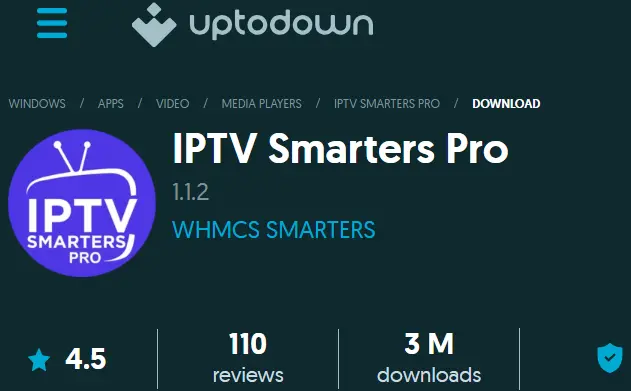
Step 1: Visit the Official IPTV Smarters Download Page
To ensure system safety and avoid unverified third-party binaries, always obtain IPTV Smarters directly from official sources. Open your web browser and navigate to the official IPTV Smarters download section to acquire the installer file, typically named IPTVSmartersSetup.exe.
Step 2: Run the Installer as Administrator
Once IPTVSmartersSetup.exe has completed downloading to your computer's Downloads folder:
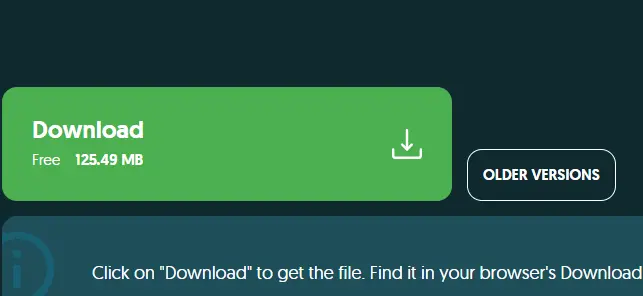
- Open your PC's Downloads folder.
- Right-click on IPTVSmartersSetup.exe and select "Run as Administrator".
- If Windows User Account Control (UAC) asks for permission, click "Yes".
- Follow the step-by-step setup wizard prompts to select installation directory and complete installation.
Step 3: Launch IPTV Smarters Pro
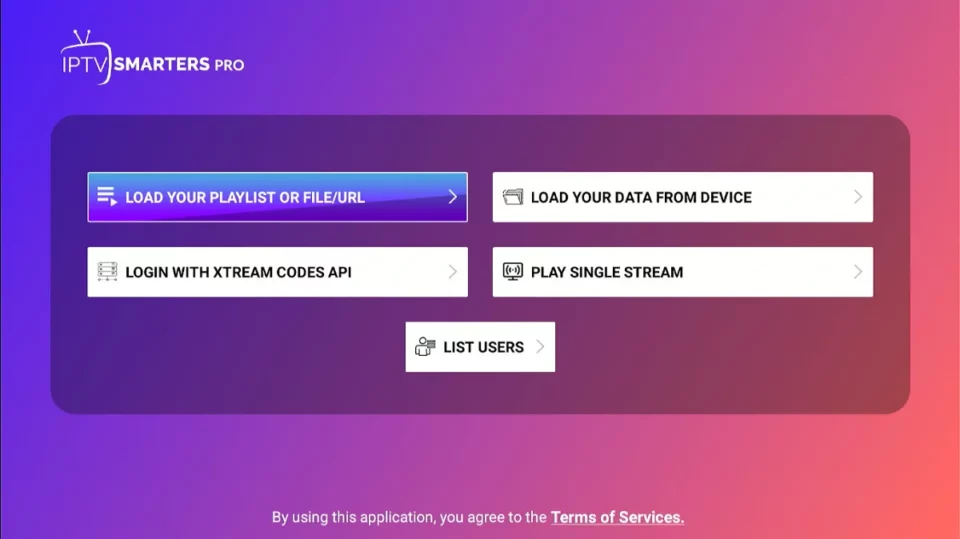
After setup finishes, launch the program from your Desktop shortcut or Windows Start Menu. The application will open to a welcome screen prompting you to choose your login method.
Step 4: Login with Xtream Codes API
For fast channel loading, live EPG updates, and full VOD categorization, we recommend logging in via Xtream Codes API.
- Select the "Login with Xtream Codes API" option.
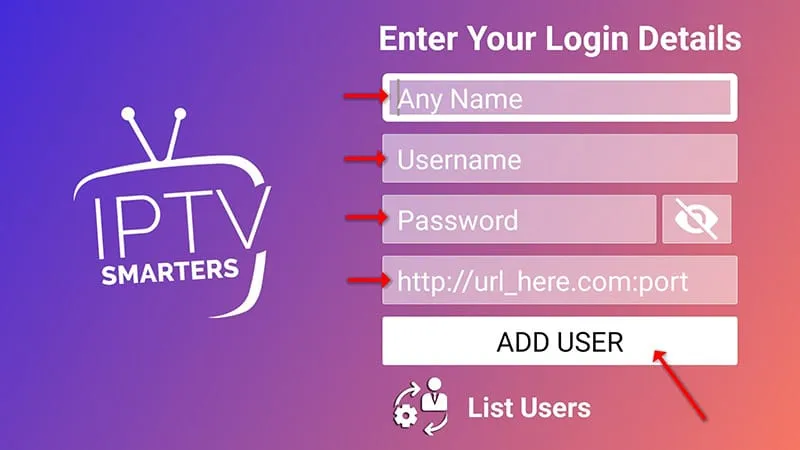
- Fill in your login parameters supplied in your 8kIPTV4U activation details:
- Any Name: Enter a label (e.g.,
8kIPTV4U) - Username: Your 8kIPTV4U account username
- Password: Your 8kIPTV4U account password
- Server URL: Server URL address (e.g.,
http://server.8kiptv4u.com:25461)
- Any Name: Enter a label (e.g.,
- Click "Add User" and wait a few seconds while your playlist and program guides download.
Step 5: Explore Channels & Live Features
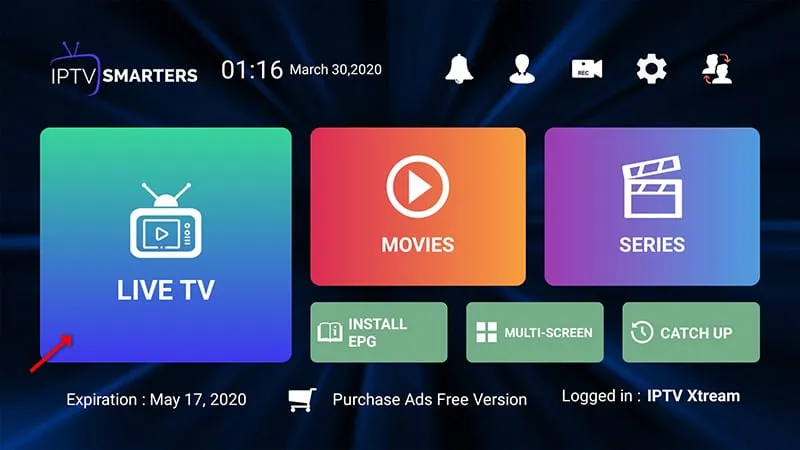
Once loaded, your main dashboard allows full navigation across all streaming categories included in your plan:
- Live TV: Categorized live channels with full Electronic Program Guide (EPG) functionality.
- Movies (VOD): Stream 90,000+ movie titles with multi-language subtitle options.
- Series: Browse TV series by season and episode.
- Catch Up & Favorites: Save your favorite sports channels or watch recent TV broadcasts.
Alternative IPTV Installers & Players for Windows PC
If you prefer lightweight software or native Microsoft Store applications for watching IPTV on PC, consider these popular Windows IPTV downloader alternatives:
- VLC Media Player: A classic, open-source player. Simply go to Media > Open Network Stream and paste your M3U playlist URL from 8kIPTV4U to watch instantly.
- MyIPTV Player: Available free directly on the Microsoft Store for Windows 10 and 11. Offers seamless EPG integration and an intuitive interface designed for Windows desktop users.
- SFVIP Player: A streamlined standalone desktop client designed for low-resource Windows PCs requiring fast connection speeds without heavy system overhead.
Troubleshooting Tips
- App Won't Start: Right-click the desktop shortcut and click "Run as Administrator". Windows requires administrator access to run media acceleration features properly.
- Buffering Issues: Ensure your network delivers at least 15–25 Mbps. Connect via Ethernet cable instead of Wi-Fi for maximum stability.
- Login Authorization Error: Verify that there are no typos in your Server URL, Username, or Password. Note that credentials are case-sensitive.
- EPG Not Loading: Navigate to Settings inside IPTV Smarters and click "Install EPG" or "Refresh EPG Data".
Tips for Better Streaming Experience
- Use an Ethernet wired connection to reduce latency and dropouts during live sports broadcasts.
- Enable Hardware Acceleration in the player settings menu to utilize your computer's GPU.
- Keep your Windows graphics drivers up to date.
Enjoy your IPTV experience with 8kIPTV4U — fast streaming, smooth playback, crystal-clear picture quality, and 24/7 online support!
If you face any issue during installation or setup, contact our support team — we're always available to help you resolve any problems quickly and professionally.
Continue Reading — Installation Guides for Other Devices:
Learn how to install IPTV on your preferred device:
Good to know
Frequently Asked Questions
Find answers about IPTV Smarters on Windows, setup and troubleshooting.
IPTV Smarters offers both free and premium options on Windows. The free version includes basic streaming features, while the premium version provides options like multiple playlists and enhanced EPG support.
IPTV Smarters requires Windows 7 or higher (Windows 10/11 recommended), at least 2GB RAM (4GB recommended), 500MB free storage space, and a stable 5+ Mbps internet connection.
Yes, IPTV Smarters on Windows works perfectly with 8kIPTV4U. Simply install the application and log in using Xtream Codes API with your 8kIPTV4U credentials.
Your server URL, username, and password are provided in your order confirmation email or can be requested directly via our 24/7 customer support.
If the app fails to start, right-click the IPTV Smarters icon and select 'Run as Administrator'. If issues continue, reinstall the application or inspect Windows Defender firewall settings.