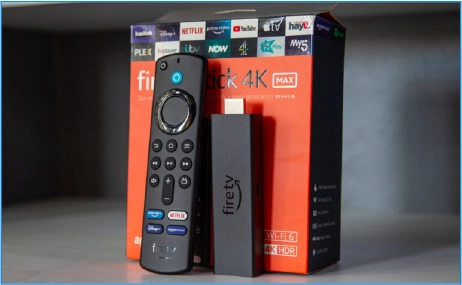
How To Install IPTV Smarters Pro On Firestick & Android
Complete guide to sideload IPTV Smarters on your Amazon Firestick with developer options and unknown sources enabled. This is the most popular IPTV setup for Fire TV users.
Install on Firestick
Welcome to the official 8kIPTV4U installation hub! This page is your complete resource for setting up IPTV on any device. IPTV, or Internet Protocol Television, delivers live TV channels, movies, and series directly to you over the internet, offering a flexible and high-quality alternative to traditional cable or satellite.
Before you begin, you will need a stable internet connection (we recommend at least 20 Mbps for smooth streaming), a compatible device, and an active IPTV subscription from us. Once you subscribe, you will receive your login credentials, which typically include a username, password, and a server URL. You will use these details to log into a dedicated IPTV player app.
The two most common login methods are the Xtream Codes API and an M3U Playlist URL. The Xtream Codes API is the easiest, requiring you to simply enter your credentials into an app like IPTV Smarters Pro. An M3U playlist is a URL that you load into players like TiviMate or VLC. The installation process varies slightly depending on your device's operating system. For example, installing IPTV on a Firestick requires 'sideloading' an app using the Downloader tool, while on Android or Smart TVs, you can often find a compatible player in the official app store.
Our IPTV setup guides cover everything from Firestick and Android TV to Windows, Mac, and Smart TVs. Choose your device from the cards below to access a detailed, step-by-step IPTV installation guide and start streaming in minutes.
Complete guide to sideload IPTV Smarters on your Amazon Firestick with developer options and unknown sources enabled. This is the most popular IPTV setup for Fire TV users.
Install on Firestick
Learn how to use IPTV Smarters Pro with Xtream Codes API login for live TV, movies, and series streaming.
Setup Smarters Pro
Complete tutorial for installing IPTV on TiviMate with catch-up TV, recording, and EPG support features.
Install on TiviMate
Learn how to use the Downloader app to install IPTV apps on Firestick, Fire TV, and Android TV devices. This step-by-step guide explains how to enable unknown sources, download IPTV Smarters or any IPTV app, and set up your IPTV service quickly and easily.
Downloader Guide
Step-by-step guide to download, install, and set up IPTV Smarters on your Windows computer for desktop streaming.
Install on WindowsTo ensure a smooth IPTV setup and an uninterrupted streaming experience, please make sure you have the following essentials ready before you begin the installation process.
Our IPTV service is designed to work seamlessly across a wide range of devices. Below are some of the most popular platforms we support.
All Amazon Fire TV devices, including Firestick 4K, Fire TV Cube, and Firestick Lite, are fully supported via sideloading apps like IPTV Smarters.
Devices running Android TV or Google TV, such as NVIDIA Shield, Chromecast with Google TV, and Sony TVs, can install IPTV apps directly from the Play Store.
Watch on the go by installing our recommended IPTV player from the Google Play Store on any Android smartphone or tablet.
Most Smart TVs from brands like Samsung (Tizen OS) and LG (webOS) have dedicated IPTV apps available in their respective app stores.
Enjoy the full IPTV experience on your desktop or laptop by using the official IPTV Smarters Pro app for Windows and macOS.
Install a compatible IPTV player from the App Store on your Apple TV, iPhone, or iPad to stream your favorite content.
Dedicated IPTV boxes like MAG and Formuler are fully supported. Simply provide us with your device's MAC address during setup.
Encountering an issue? Here are some quick solutions to the most common IPTV setup problems that users face.
Double-check your username, password, and server URL for typos. Ensure there are no extra spaces. If the problem persists, contact support to reset your details.
This often happens with an incorrect M3U URL or if the Xtream Codes API details are wrong. Verify your credentials and ensure your subscription is active.
Buffering is usually caused by a slow or unstable internet connection. Restart your router, switch to a wired Ethernet connection if possible, or try a different server location in your app settings.
A black screen can indicate a server-side issue or a problem with the specific channel stream. Try changing the channel and coming back. If it affects all channels, restart your app and device.
An outdated app is the most common cause. Clear the app's cache in your device settings or uninstall and reinstall the latest version of your IPTV player.
If your Electronic Program Guide (EPG) is not loading, go to your IPTV app's settings and manually refresh or reload the EPG data. Ensure your EPG URL is correct.